cTrader Trading Platform Guide
Overview
cTrader is a comprehensive trading platform designed for forex, CFD, and cryptocurrency trading. Developed by Spotware, it offers advanced charting tools, sophisticated trading strategies, and a user-friendly interface for both beginner and experienced traders.
Download and Installation
-
💻 Windows Desktop --- Download cTrader for Windows Windows Version
-
🖥️ macOS Desktop --- Download cTrader for Mac Mac Version
-
🌐 Web Platform --- Access cTrader directly in your browser Web Version
-
📱 iOS Mobile --- cTrader app for iPhone and iPad iOS App
-
🤖 Android Mobile --- cTrader app for Android devices Android App
-
📊 All Platforms --- Complete platform download collection Full Download Page
Key Features for Me
Unlimited Demo Accounts
When I was first learning trading, cTrader's approach to demo accounts was a game-changer. Unlike many platforms that limit demo accounts or make them difficult to reset, cTrader offers:
- Unlimited demo accounts for risk-free learning
- Easy account creation and management
- No time restrictions or complicated renewal processes
- Perfect for testing strategies without financial risk
Easy to Navigate and Flexible Interface
cTrader's interface stands out for its intuitive design and functionality:
- Clean, Customizable Layout: Arrange charts, watchlists, and order panels to suit your trading style
- One-Click Trading: Execute trades directly from charts with minimal clicks
- Intuitive Order Management:
- Create, modify, and close orders with simple drag-and-drop functionality
- Easily visualize open positions and pending orders on charts
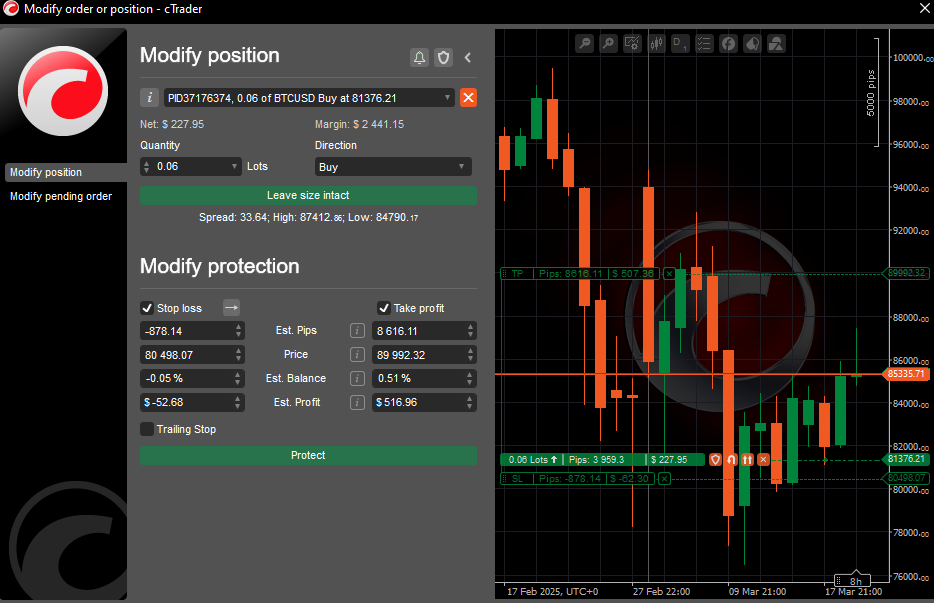
- Quickly adjust stop-loss and take-profit levels visually
The platform offers comprehensive documentation on order management: - Order Creation and Management Guide - Position and Deal Management
Advanced Security Features
Security is paramount in trading, and cTrader doesn't disappoint:
- Two-factor authentication (2FA)
- Encrypted connection protocols
- Regular security updates
- Comprehensive account security management
Multiple Accounts Friendly
A standout feature for traders and those with multiple accounts with personal brokers and prop firms
- Seamless account integration
- Instant account addition to cTrader profile after purchase
- No manual credential entry
- Simplified onboarding for multiple trading accounts
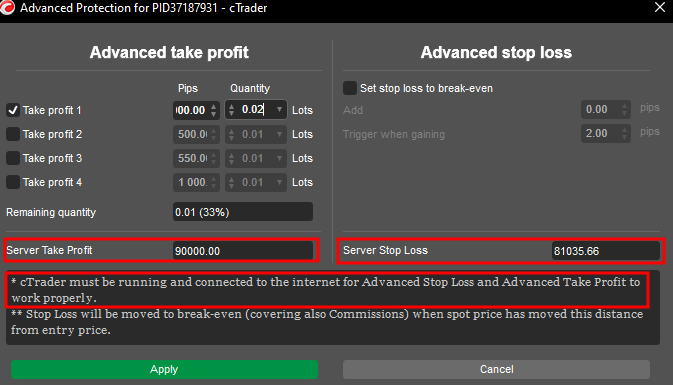
Set Partial Take Profits
cTrader's Advanced Take Profit (ATP) feature gives traders significant control over exit strategies:
- Multiple Take Profit Levels: Set several exit points at different price levels
- Volume Distribution: Allocate specific percentages of your position to each take profit level
- Visual Management: Drag-and-drop interface for quick adjustments
- Profit Tracking: Real-time calculation of potential profits for each level
Watch this comprehensive tutorial on using Advanced Take Profits:
ATPs are client side only
The Advanced Take Profit levels are client based, not server based. This means if you close cTrader, your partial TPs will be removed. When you reopen the application, it will reestablish them upon reconnection.
Position Take Profit and Stop Loss are Server based
The TP and SL you set for the position is server based. This means when you close cTrader, these orders remain active on the broker's server.
Move Stop Loss to Entry
cTrader offers a powerful risk management feature that automatically moves your stop loss to entry (breakeven) when a trade reaches a specified profit level:
- Automated Risk Management: Set the platform to automatically move your stop loss to breakeven after reaching a predefined profit target
- Customizable Trigger Points: Define exactly how many pips in profit should trigger the breakeven function
- Perfect for Scalping: Ideal for short-term traders looking to secure positions quickly
- Trade Psychology Benefits: Removes the emotional hurdle of manually moving stops, allowing you to step away from the screen with reduced stress
- Implementation Options:
- Use the built-in functionality in the platform settings
- Configure via hotkeys for instantaneous application (especially useful with Stream Deck integration)
- Available through cBots for fully automated implementation
This feature was instrumental in my own trading journey, allowing me to lock in risk-free positions while building experience and confidence in my strategy execution.
cBots
What are cBots
Understanding cBots: Automated Trading Algorithms
Key Characteristics
- Written in C# programming language
- Fully integrated with cTrader platform
- Can be developed using cTrader's native cAlgo development environment
- Support for complex trading logic and strategy implementation
Development Environment
- cAlgo: Official IDE for cBot development
- Integrated development tools
- Built-in strategy testing and backtesting capabilities
- Access to comprehensive trading APIs
Types of cBots
- Trading Robots
- Fully automated trading strategies
- Execute trades based on predefined conditions
-
Can operate 24/7 without manual intervention
-
Signal Generators
- Provide trading signals and recommendations
- Alert traders to potential trading opportunities
-
Less invasive than full trading robots
-
Risk Management Bots
- Automated stop-loss and take-profit management
- Portfolio risk assessment
- Position sizing and hedging strategies
Importing cBots
Personal Use
Stream Deck Integration
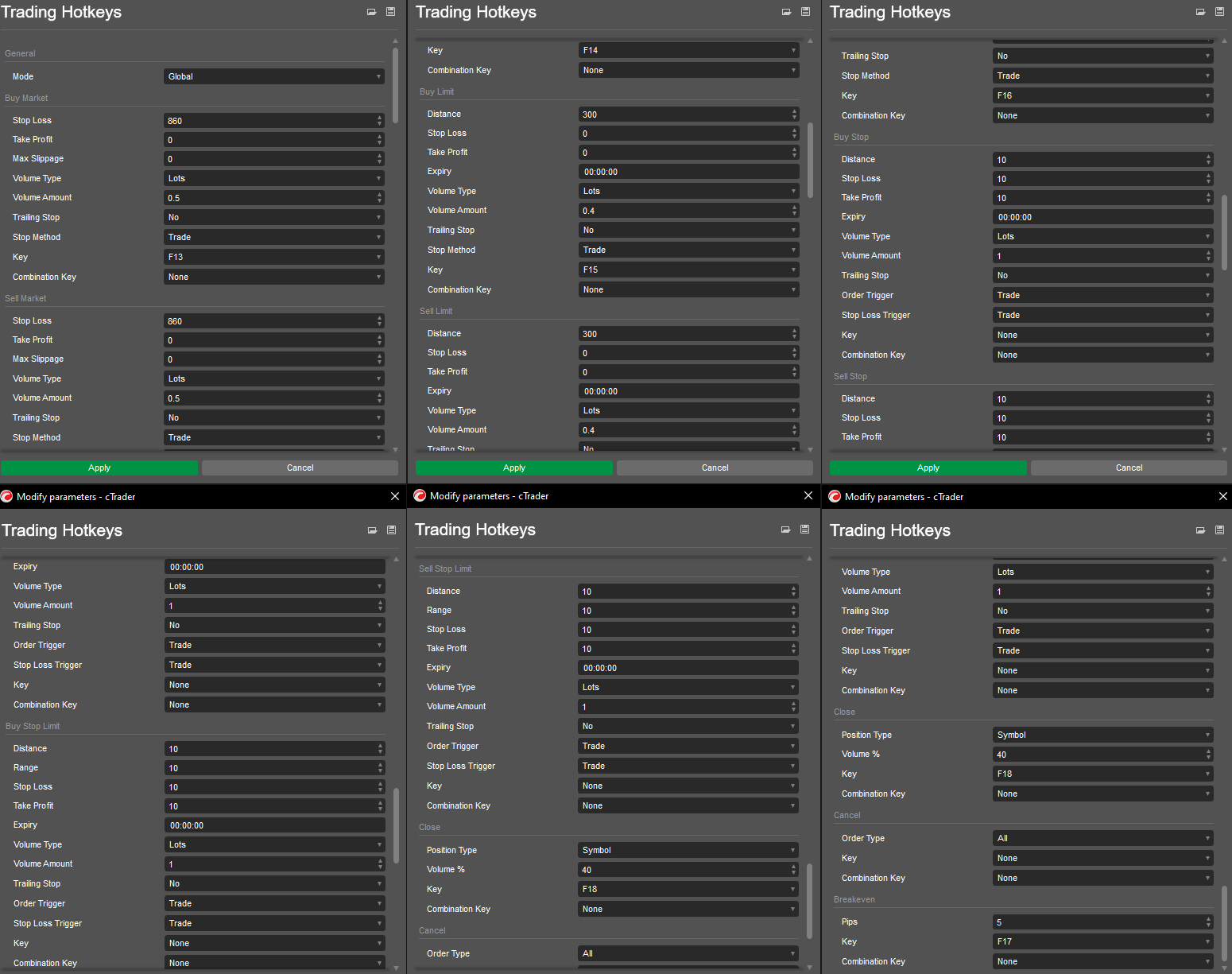
When scalping for execution, I use a Stream Deck with assigned hotkeys.
Trading Hotkeys Plugin
Download Trading Hotkeys Plugin
I dont know where I got this file from but it fits my needs, maybe it was from cTrader's sample files If i find the source I will update this

Configuration Options
The plugin offers extensive configuration possibilities:
Example Configuration File
    {
    "Chart": {
        "Symbol": "BTCUSD",
        "Period": "m1"
    },
    "Parameters": {
        "Mode": 0,
        "BuyMarketStopLoss": 860.0,
        "BuyMarketTakeProfit": 0.0,
        "BuyMarketMaxSlippage": 0.0,
        "BuyMarketVolumeType": 2,
        "BuyMarketVolumeAmount": 0.4,
        "BuyMarketTrailingStop": false,
        "BuyMarketStopTriggerMethod": 0,
        "BuyMarketKey": 121,
        "BuyMarketCombinationKey": 0,
        "SellMarketStopLoss": 860.0,
        "SellMarketTakeProfit": 0.0,
        "SellMarketMaxSlippage": 0.0,
        "SellMarketVolumeType": 2,
        "SellMarketVolumeAmount": 0.4,
        "SellMarketTrailingStop": false,
        "SellMarketStopTriggerMethod": 0,
        "SellMarketKey": 122,
        "SellMarketCombinationKey": 0,
        "BuyLimitDistance": 300.0,
        "BuyLimitStopLoss": 0.0,
        "BuyLimitTakeProfit": 0.0,
        "BuyLimitExpiry": "00:00:00",
        "BuyLimitVolumeType": 2,
        "BuyLimitVolumeAmount": 0.4,
        "BuyLimitTrailingStop": false,
        "BuyLimitStopTriggerMethod": 0,
        "BuyLimitKey": 123,
        "BuyLimitCombinationKey": 0,
        "SellLimitDistance": 300.0,
        "SellLimitStopLoss": 0.0,
        "SellLimitTakeProfit": 0.0,
        "SellLimitExpiry": "00:00:00",
        "SellLimitVolumeType": 2,
        "SellLimitVolumeAmount": 0.4,
        "SellLimitTrailingStop": false,
        "SellLimitStopTriggerMethod": 0,
        "SellLimitKey": 124,
        "SellLimitCombinationKey": 0,
        "BuyStopDistance": 10.0,
        "BuyStopStopLoss": 10.0,
        "BuyStopTakeProfit": 10.0,
        "BuyStopExpiry": "00:00:00",
        "BuyStopVolumeType": 2,
        "BuyStopVolumeAmount": 1.0,
        "BuyStopTrailingStop": false,
        "BuyStopOrderTriggerMethod": 0,
        "BuyStopLossTriggerMethod": 0,
        "BuyStopKey": 0,
        "BuyStopCombinationKey": 0,
        "SellStopDistance": 10.0,
        "SellStopStopLoss": 10.0,
        "SellStopTakeProfit": 10.0,
        "SellStopExpiry": "00:00:00",
        "SellStopVolumeType": 2,
        "SellStopVolumeAmount": 1.0,
        "SellStopTrailingStop": false,
        "SellStopOrderTriggerMethod": 0,
        "SellStopLossTriggerMethod": 0,
        "SellStopKey": 0,
        "SellStopCombinationKey": 0,
        "BuyStopLimitDistance": 10.0,
        "BuyStopLimitRange": 10.0,
        "BuyStopLimitStopLoss": 10.0,
        "BuyStopLimitTakeProfit": 10.0,
        "BuyStopLimitExpiry": "00:00:00",
        "BuyStopLimitVolumeType": 2,
        "BuyStopLimitVolumeAmount": 1.0,
        "BuyStopLimitTrailingStop": false,
        "BuyStopLimitOrderTriggerMethod": 0,
        "BuyStopLimitStopLossTriggerMethod": 0,
        "BuyStopLimitKey": 0,
        "BuyStopLimitCombinationKey": 0,
        "SellStopLimitDistance": 10.0,
        "SellStopLimitRange": 10.0,
        "SellStopLimitStopLoss": 10.0,
        "SellStopLimitTakeProfit": 10.0,
        "SellStopLimitExpiry": "00:00:00",
        "SellStopLimitVolumeType": 2,
        "SellStopLimitVolumeAmount": 1.0,
        "SellStopLimitTrailingStop": false,
        "SellStopLimitOrderTriggerMethod": 0,
        "SellStopLimitStopLossTriggerMethod": 0,
        "SellStopLimitKey": 0,
        "SellStopLimitCombinationKey": 0,
        "ClosePositionType": 3,
        "CloseVolumePercent": 30.0,
        "CloseKey": 126,
        "CloseCombinationKey": 0,
        "CancelPendingOrderType": 0,
        "CancelPendingOrderTypeKey": 0,
        "CancelPendingOrderTypeCombinationKey": 0,
        "BreakevenPips": 5.0,
        "BreakevenKey": 125,
        "BreakevenCombinationKey": 0
    }
    }
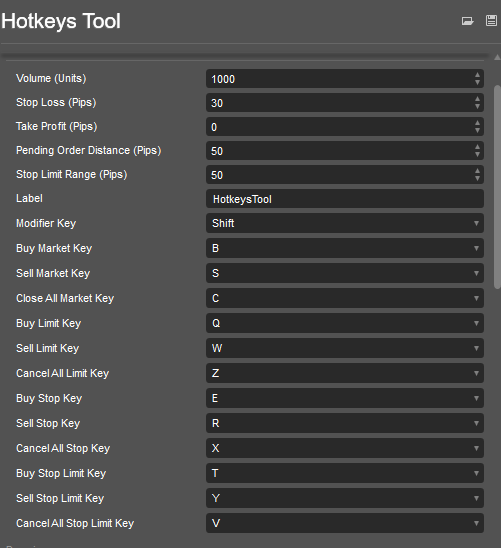
Alternative Hotkey Plugins
ClickAlgo Hotkeys
An alternative plugin you could use is cTrader Hotkeys - Keyboard Shortcuts from ClickAlgo (free).
Security Considerations
- Use two-factor authentication
- Keep the platform updated
- Use strong, unique passwords
- Be cautious of third-party plugins
- Validate cBot sources carefully
Additional Resources
- Official cTrader Documentation
- Community forums
- YouTube tutorials
- Broker-specific guides
Disclaimer
Trading involves significant risk. Automated trading strategies can amplify potential losses. Always use proper risk management and never invest more than you can afford to lose. Test thoroughly in demo environments before live trading.